
Proven Settings and Tips to Boost FPS in CS2 Matches
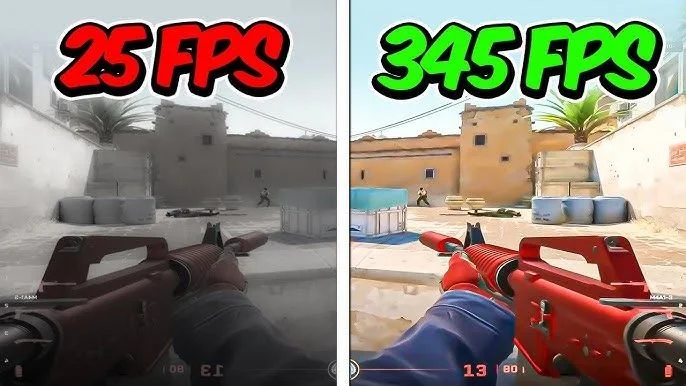
Proven Settings and Tips to Boost Your FPS in CS2 Matches
In a fast-paced shooter like CS2, frame rate isn't just a number on a performance overlay - it directly affects how smooth your aim feels, how quickly you can react to enemies, and how consistent your overall experience is from round to round. Even players with solid hardware can run into unexpected frame drops if their settings aren't optimized for competitive play. The good news is that a combination of in-game settings, system configuration, and a few simple habits can make a noticeable difference in FPS, often without requiring any hardware upgrades at all. This guide covers how to boost FPS in CS2 with practical settings and tweaks that tend to make the biggest impact.
Optimizing In-Game Settings
The first and most accessible place to improve performance is within CS2's own video settings menu, where a few key options make the biggest difference.
Start With Your In-Game Video Settings
CS2's video settings menu includes several options that have an outsized impact on performance compared to their visual benefit. Lowering global shadow quality, reducing model and texture detail, and disabling effects like motion blur and depth of field can all free up resources without dramatically changing how the game looks during actual gameplay. Resolution and aspect ratio also play a role - many competitive players use settings that prioritize a clear, uncluttered view over maximum visual fidelity. The goal isn't to make the game look bad, but to strip away anything that doesn't directly help you see enemies and react quickly.
Key Settings Worth Adjusting
A few specific settings tend to come up again and again in performance discussions:Global Shadow Quality: Lowering this can reduce GPU load significantly with minimal visual impact.Model/Texture Detail: Medium settings often look nearly identical to high in fast-paced gameplay.Multicore Rendering: Keeping this enabled generally helps modern CPUs handle the game more efficiently.Boost Player Contrast: Improves visibility of enemy models without affecting performance.FPS Counter: Useful for tracking the real-world impact of any changes you make.
System-Level and Advanced Tweaks
Beyond the game itself, your overall system setup plays a major role in how consistent your frame rate stays from match to match.
System-Level Adjustments
Beyond in-game settings, your overall system configuration matters just as much. Keeping graphics drivers up to date ensures you're benefiting from the latest performance optimizations for newer games. Closing background applications, especially browsers with many open tabs or resource-heavy software, frees up CPU and memory for CS2. On Windows, setting CS2 to a high-performance power plan and disabling unnecessary startup programs can also reduce background interference during matches. None of these changes require technical expertise, but together they can meaningfully reduce stutters and frame drops, especially on mid-range systems.
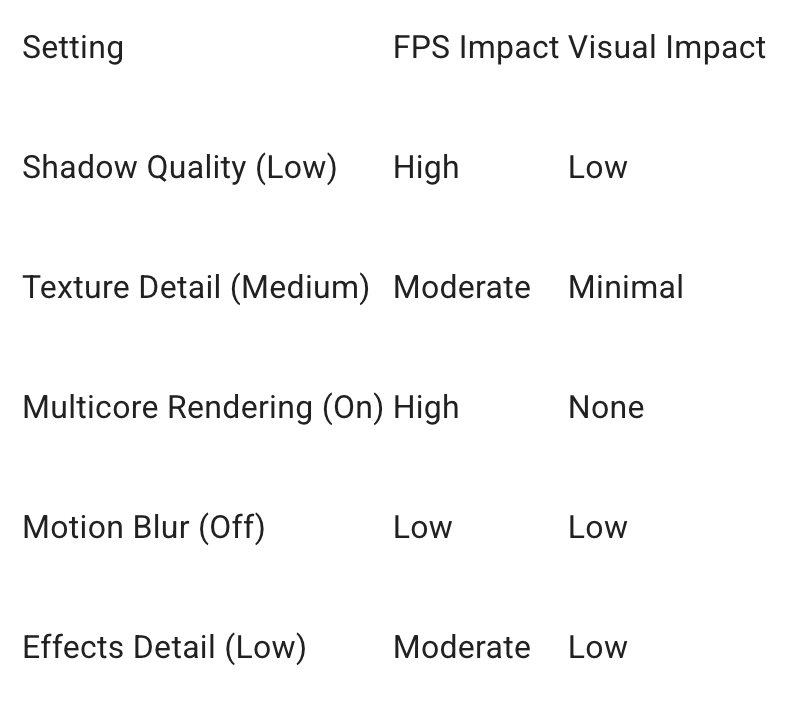
Quick Reference: Setting Adjustments and Their Impact
The table below gives a quick overview of common adjustments and how much impact they typically have on FPS versus visuals.
Maintaining Peak Performance
Once the basics are covered, a few additional steps help players push performance further and keep it stable over the long term.
Going Further With In-Depth Configuration
For players who want to go beyond the basics and fine-tune every aspect of their setup, there are more advanced configuration options worth exploring, including launch options, console commands, and monitor settings. If you're ready to boost FPS further with a more detailed walkthrough of these advanced settings, it's worth working through a dedicated guide that covers each option step by step, along with explanations of what each change actually does.
Keeping Performance Consistent Over Time
Performance optimization isn't a one-time task. Game updates can change default settings, new background processes can creep onto your system over time, and hardware can accumulate dust that affects cooling and thermal performance. Periodically revisiting your settings, especially after major CS2 updates, helps ensure that the improvements you've made continue to hold up. A quick check every few months - confirming drivers are current, settings haven't reset, and background applications are still under control - goes a long way toward maintaining consistent FPS.
What's the Best Next Step to Boost Your FPS?
Boosting FPS in CS2 doesn't have to mean buying new hardware. By focusing on the in-game settings that matter most, cleaning up your system configuration, and revisiting your setup periodically, most players can see a meaningful improvement in smoothness and responsiveness. Small adjustments add up, and a more consistent frame rate can make a real difference in how comfortable and competitive your matches feel.